Another option is to build the language server from source code as described below.
Pick a suitable folder location to download the Zig language server source code, for example:
c:\Utilities\LSP
Use the following command line to clone the git repository:
git clone https://github.com/zigtools/zls.git
This clone will result in the following output:
C:\Utilities\LSP>git clone https://github.com/zigtools/zls.git
Cloning into 'zls'...
remote: Enumerating objects: 15563, done.
remote: Counting objects: 100% (16/16), done.
remote: Compressing objects: 100% (10/10), done.
remote: Total 15563 (delta 6), reused 7 (delta 6), pack-reused 15547 (from 1)
Receiving objects: 100% (15563/15563), 7.89 MiB | 1.82 MiB/s, done.
Resolving deltas: 100% (11560/11560), done.
When complete, the clone will have created the following folder:
c:\Utilities\LSP\zls
Building the Language Server
With the clone complete, build the language server using the following commands from inside that newly created folder:
cd c:\Utilities\LSP\zls
zig build -Doptimize=ReleaseSafe
When the build completes it will have create the zls.exe in the following folder location:
 Directory of c:\Utilities\LSP\zls\zig-out\bin

14/01/2025  02:36 PM         3,360,256 zls.exe
Note this folder location and the executable details, as these details will be needed in the configuration step that follows.
To test the language server run the following command line:
c:\Utilities\LSP\zls\zig-out\bin\zls.exe --help
This should result in the following output:
Usage: zls [command]

Commands:

  --help: Prints this message.
  --version: Prints the version.
  --compiler-version: Prints the compiler version with which the server was compiled.
  --enable-debug-log: Enables debug logs.
  --enable-message-tracing: Enables message tracing.
  --show-config-path: Prints the path to the configuration file to stdout
  --config-path: Specify the path to a configuration file specifying LSP behaviour.
Configuration
Start Zeus and use the
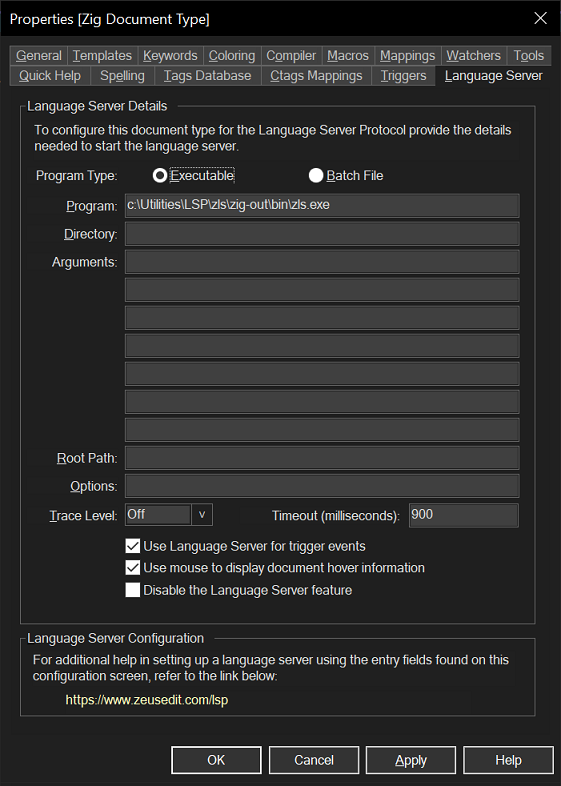
Options, Document Types menu to edit the Zig document type and in the Language Server configuration panel apply the following configuration settings:
Program Type: Executable
     Program: c:\Utilities\LSP\zls\zig-out\bin\zls.exe
NOTE: The executable details used are the same as the details noted from the earlier steps of the configuration process.
This completed setup is shown below:
More details below describe how to configure the Zig language server found
here.
Using the Language Server
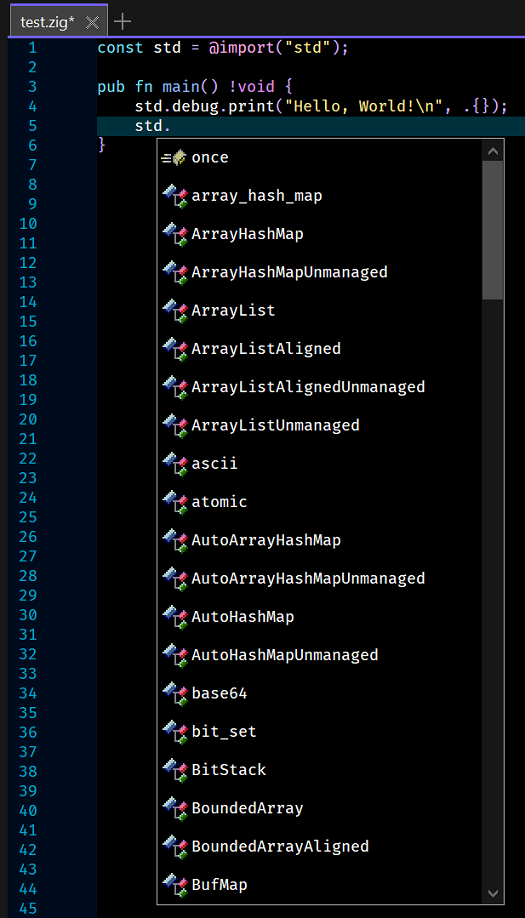
To test the configuration, create a simple test.zig file and fire off an auto-complete request:
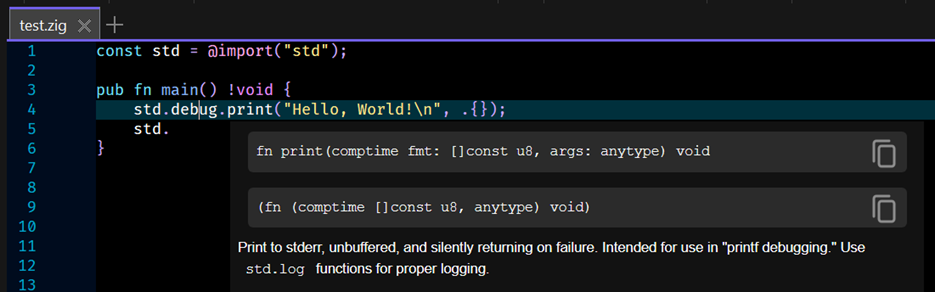
In addition to code completion, code navigation, function signatures and document hover will also work.
Shown below is an example of the document hover feature.
IMPORTANT: If the auto complete does not fire, try using the File, Reload menu to reload the Zig file. Also check for language server errors using the Language Server, Language Server, Display Server Output menu.
NOTE: Should the language server not work as expected, turn on verbose messaging using the Trace Level drop down found in the properties dialog shown in the earlier setup image and in that same dialog enable extra debugging using the following arguments: