Download the release zip file and complete the install by extracting the contents to a suitable installation folder, similar to the one shown below:
 Directory of D:\Utilities\phpantom

13/07/2026  09:04 PM    <DIR>          .
22/07/2026  01:56 PM    <DIR>          ..
20/08/2026  01:18 AM        44,192,256 phpantom_lsp.exe
The installation folder shown above will need to be added to the system PATH meaning this folder will need to be added to that environment variable.
D:\Utilities\phpantom
Details on how to set the PATH can be found here.
With the software installed and the path updated, test the installation by running phpantom --version at the command line prompt, which should result in the following output:
phpantom_lsp 0.10.0
Program Type: Executable
     Program: phpantom_lsp.exe
   Directory: $wdd
To start using the language server create a simple test.php PHP file as shown below:
<?php
class Fruit {
  // Properties
  public $name;
  public $color;

  // Method to set the properties
  function set_details($name, $color) {
    $this->name = $name;
    $this->color = $color;
  }

  // Method to display the properties
  function get_details() {
    echo "Name: " . $this->name . ". Color: " . $this->color .".<br>";
  }
}?>
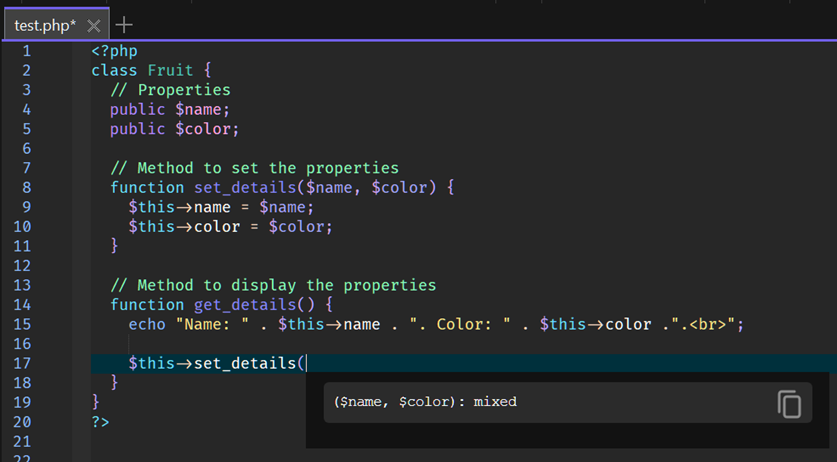
Here is an example of the function signatures feature:
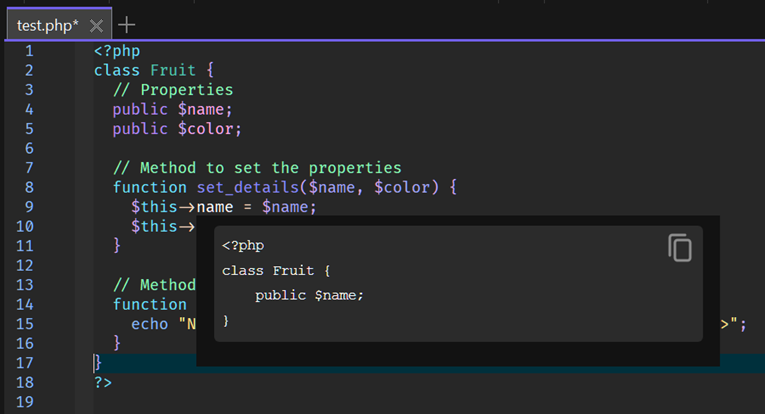
Here is an example of the documentation hover feature: