SuperHTML LSP Configuration
The details below describe how to install and configure the SuperHTML language server found
here.
Installing the Language Server
A pre-built release of the language server can be downloaded from
here.
The installation is as simple as downloading the
x86_64-windows.zip file and extracting the single executable into an installation folder, similar to the one shown below:
 Directory of D:\Utilities\LSP\

13/10/2025  09:44 PM         2,804,224 superhtml.exe
24/01/2026  04:01 PM           731,956 x86_64-windows.zip
               2 File(s)      3,536,180 bytes
               2 Dir(s)  216,100,655,104 bytes free
With the software installed test the installation by running
D:\Utilities\LSP\superhtml.exe version at the command line prompt, which should result in the following output:
0.6.2
Configuration
Start Zeus and use the
Options, Document Types menu to edit the
HTML document type and in the
Language Server panel apply the following configuration settings:
Program Type: Executable
     Program: D:\Utilities\LSP\superhtml.exe
   Directory:
   Arguments: lsp
NOTE: The directory value is only required if the location of the superhtml.exe file has not been added to the system PATH.
Using the Language Server
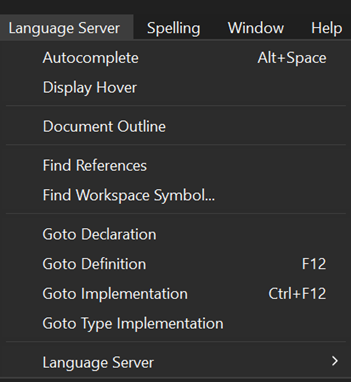
The Language Server, Autocomplete menu is used to fire of the autocomplete as shown below:
NOTE: As that menu indicates, the Alt+Space keyboard shortcut can also be used to activate the autocomplete.
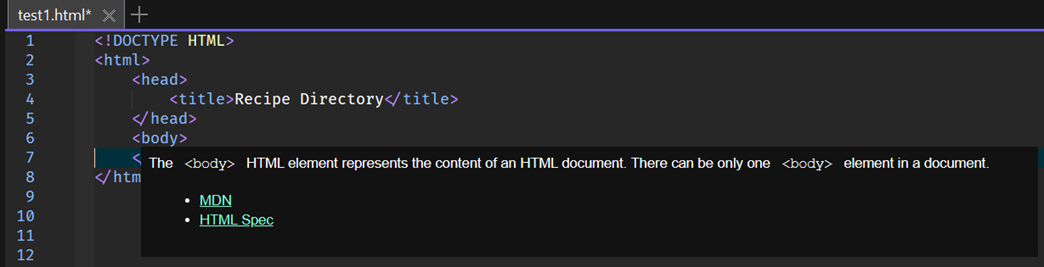
The language server can be used to provied hover documentation as shown below: