Download the release zip file and complete the install by extracting the contents to a suitable installation folder, similar to the one shown below:
 Directory of D:\Utilities\dmd-lsp

20/09/2026  09:04 PM    <DIR>          .
20/09/2026  01:56 PM    <DIR>          ..
20/09/2026  07:25 PM         4,221,440 dmd-lsp.exe
20/09/2026  07:23 PM             5,002 README.md
The installation folder shown above will need to be added to the system PATH meaning this folder will need to be added to that environment variable.
D:\Utilities\dmd-lsp
Details on how to set the PATH can be found here.
With the software installed and the path updated, test the installation by running dmd-lsp.exe --version at the command line prompt, which should result in the following output:
dmd-lsp 0.3.0
Program Type: Executable
     Program: dmd-lsp.exe
   Directory: $wdd
The language server uses a dls.jon to help configure the server. That file needs to be located in the root folder of the project, so if a Zeus workspace is use that would match to the root folder of the workspace.
The easiest way to create a Zeus workspace is to use the Workspace, Open Folder menu and select a folder to be the root folder of the workspace.
More details on to create this dls.jon file can be found here.
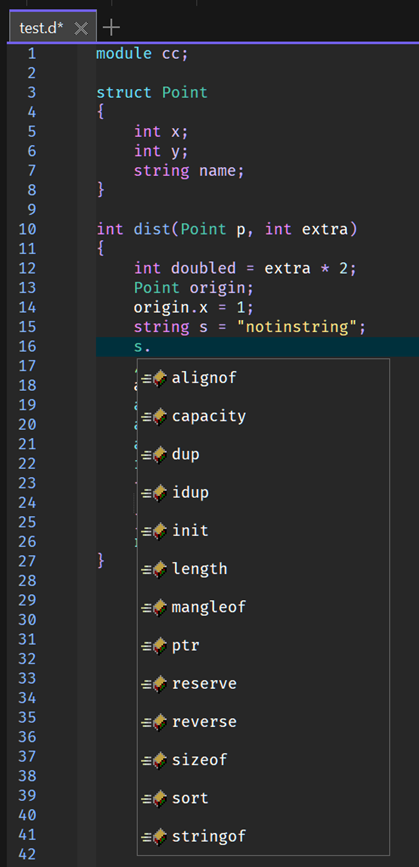
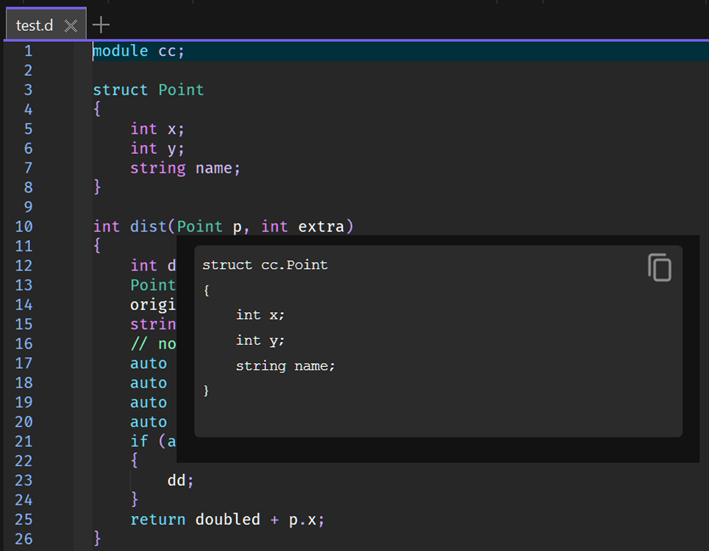
To start using the language server create a simple test.d D file as shown below:
module cc;

struct Point
{
    int x;
    int y;
    string name;
}

int dist(Point p, int extra)
{
    int doubled = extra * 2;
    Point origin;
    origin.x = 1;
    string s = "notinstring";
    // notincomment
    auto q = dou;
    auto a = origin.x;
    auto b = p.y;
    auto c = Point.x;
    if (auto dd = doubled)
    {
        dd;
    }
    return doubled + p.x;
}